
COPY & PASTE YOUR WAY TO YOUR DREAM WEBSITE“You don’t need to have to be an expert in coding or CSS to be able to take advantage of it on your own Squarespace site – so I’m sharing some of my favourite copy and paste tweaks to level up your site.”
Designing your own website can be a daunting task – especially if you’re not familiar with the technology behind web-based platforms.
The website design and development world has a tendency to overcomplicate things that simply don’t need to be that complicated.
For a lot of creatives and small business owners, I know being able to manage your own website is probably a necessity.
Squarespace is hands-down my favourite website design platform, and one of the main reasons for this is it’s drap-and-drop editor that makes updating the content on your website really easy and accessible.
I like that you don’t need to be an expert to maintain the basics on your site, because updating some text or replacing an image shouldn’t feel like you’re deactivating a bomb that could go off after a wrong click.
When I design websites for my clients, there is a lot of work that goes on in the background to achieve a website that is truly custom to them. This is often achieved using HTML and CSS code, which is also where things start to get hairy for business owners who, rightly so, don’t have the knowledge of how to write or use code on their website.
Luckily you don’t need to have to know how to write or use CSS to be able to take advantage of it on your own Squarespace site. If you’re DIY’ing your site, you can simply cope and paste the CSS code below into your Squarespace CSS editor and instantly take advantage of the added design capabilities.
1. Change your site logo to an SVG file
SVG (scaleable vector graphics) files are an image file format that uses mathematical formulas or code instead of pixels to display images. Unlike JPEGs or PNGs, an SVG retains a vector format, meaning it’s completely scalable to any size without losing sharpness.
Unfortunately, Squarespace doesn’t support the upload of SVG files either in general image blocks or for your site logo.
Luckily, there’s a pretty easy CSS workaround you can use to replace the logo in your website header with an SVG version.
Head to the Custom CSS editor under Custom Code
Under Custom Files, upload your SVG logo file
Copy and paste the code below into the editor, then replace the URL with the URL of the SVG logo file you just uploaded (delete the existing URL, then under Custom Files click your logo file and the URL of the file will automatically be added into your line of code)
Save!
//Replace Site Logo with SVG File//
.header-title-logo img {
visibility: hidden;
}
.header-title-logo a {
background-image: url(https://www.replacethisURL);
background-size: contain;
background-repeat: no-repeat;
background-position: center;
}
2. Remove hyperlink underlines in 7.1
One of the more odd quirks of Squarespace sites, is that they automatically underline all text links – with no way to remove them in Site Style settings (UGH).
Luckily if this is something you want to remove, all you need to do is copy and paste the code(s) below into your Custom CSS editor!
//Remove Underline in All Text Blocks//
.sqs-block-html a {
text-decoration: none !important;
background-image: none !important;
}
//Remove Underline in Header Nav//
.header-nav-item--active a, .header-nav-folder-item--active .header-nav-folder-item-content {
background-image: none !important;
}
3. Add a smooth scrolling effect
This tweak is a little nice to have on your website – especially if you are utilising anchor links that jump around between different locations on the same page.
Smooth scroll essentially adds a transition animation that smoothly moves the content up or down the page when a link is clicked to a new location on the same page, instead of just jumping straight to it. Think of it like watching the world go by out the window of a moving car, instead of just being teleported straight to your destination.
Note: this tweak has an added setting that only enables smooth scroll where the user has not already requested reduced motion due to accessibility reasons.
//Enable Smooth Scroll//
@media (prefers-reduced-motion: no-preference) {
html {
scroll-behavior: smooth;
}
}
4. Avoid hyphenation and widow words in text blocks
This easy tweak might just be my favourite – I use it on all websites I design.
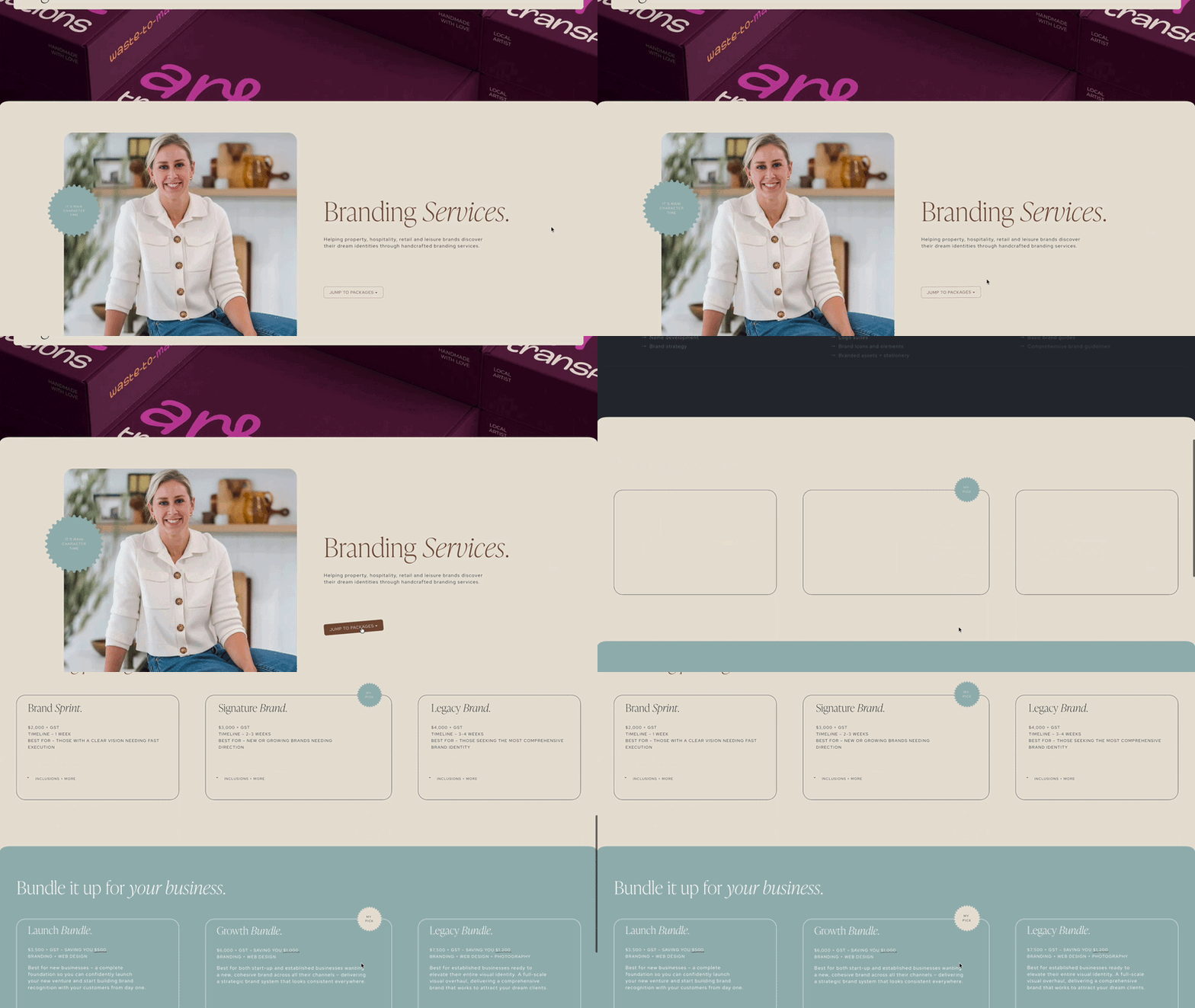
If you’re anything like me, then the automatic hyphenation of words from line breaks and single words dangling that the end of paragraphs (also known as ‘widow words’) that occurs across responsive screen sizes probably drives you a little more insane than it should.
Fear no more! This tiny tweak instantly solves this by ensuring that words are never hyphenated, and paragraphs always appear ‘balanced’. It does this by automatically moving words that do not fit on a line of text in full to the following line, and inserting line breaks to ensure each line of text is as close in length to the line(s) above it.
Hyphenation and widow words be damned!
//Enable Balanced Text//
h1, h2, h3, h4, p {
text-wrap: balance !important;
}
5. Remove padding around code blocks
My last CSS tweak might not seem like an essential, but I have made use of it on all websites I have designed using Squarespace’s Fluid Engine.
For anyone who has used the drap-and-drop Fluid Engine sections, you’ve probably noticed that they can be a little finicky.
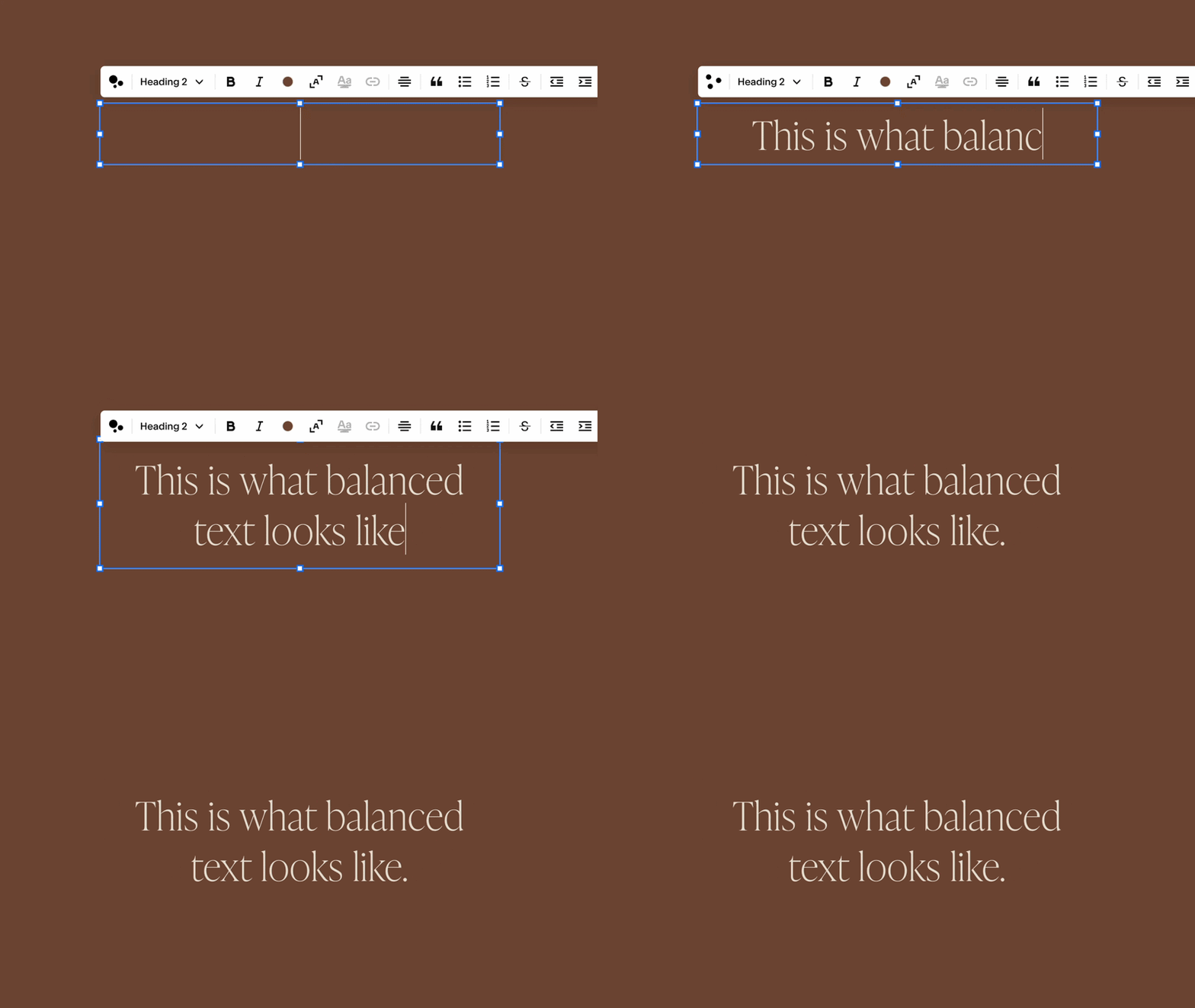
One of my gripes often arises when using code blocks, because for some weird reason they tend to appear larger in the Fluid Engine editor than they really are, so when you go to view them live there is all this unnecessary padding around the block.
Not ideal when you’re trying to achieve a nice tight design.
Luckily, this simple CSS tweak below removes this unnecessary padding, so your code blocks fit a lot more nicely in the Fluid Engine grid.
//Remove Code Block Padding//
html.squarespace-damask .sqs-blockStatus {
display: none !important;
}
I hope you’ve found these CSS tweaks useful and easy to use on your Squarespace site! They have become non-negotiable additions to the CSS of every custom site I design.
If you’d like any help with the CSS on your Squarespace site, or would like me to take the need for any of this off your hands with a custom website design, I’d love to hear from you.
You can book in a free consultation here.
You may also like


There’s no one logo file format that works perfectly for everything, and while you don’t need to be an expert on them all, understanding the basics will save you a lot of confusion (and potentially money). So I’m breaking it down to help you put your logos to best use.